It's your own personal tool for managing your family's parish information, sacramental records, financial giving history, and religious education registration. Everyone is encouraged to complete their account setup in order to be more fully informed.
Need to Register?
If this is your first time learning about the My Own Church account, creating an account is a one-time process and takes just a few steps to complete. Click on the button below to visit the St. Anne ParishSOFT website to create a My Own Church Account. This will take you to a New User Registration page located at phoenix.parishsoftfamilysuite.com.
After you have submitted your registration, the account creation will take a few days for the system to complete. You will receive an email to set your password on the ParishSOFT website. If you do not receive an email within five days, please check your spam folder and change settings to allow your email to receive email from no-reply@parishsoft.com
Already Registered?
If your family registered for religious education classes for the 2019-2020 formation year, then you should already have an account and may click the "Visit My Own Church" button to sign in.
If you made contributions to St. Anne Roman Catholic Parish, you may view a record of these in your "My Own Church" account on ParishSOFT Family Suite. (Note: This does not include Together Let Us Go Forth, CDA, and any other non-parish affiliated organizations).
After you have signed into your account, click on "My Offering":
Then, click on "Giving History":
Afterward, you will see a page similar to this with your giving history:
On this screen, you may click the "Download" button next to "Electronic Statement" to download your year-end tax statement.
Welcome to ParishSOFT! Now that you have an account, you're now ready to register your children for our various faith formation programs: Catechesis of the Good Shepherd (CGS), B.A.T.T.L.E., B.O.L.D., Children's Sacrament Prep, Jr. High Sacrament Prep, High School Sacrament Prep, Children's OCIA, and High School OCIA. If you need more information about our programs, click here.
Here are a few easy instructions to assist you in the registration process.
Note: If you are using a mobile phone you will need to click the "Full Site" button at the bottom of the screen in order to see the "My Faith Formation" tab.
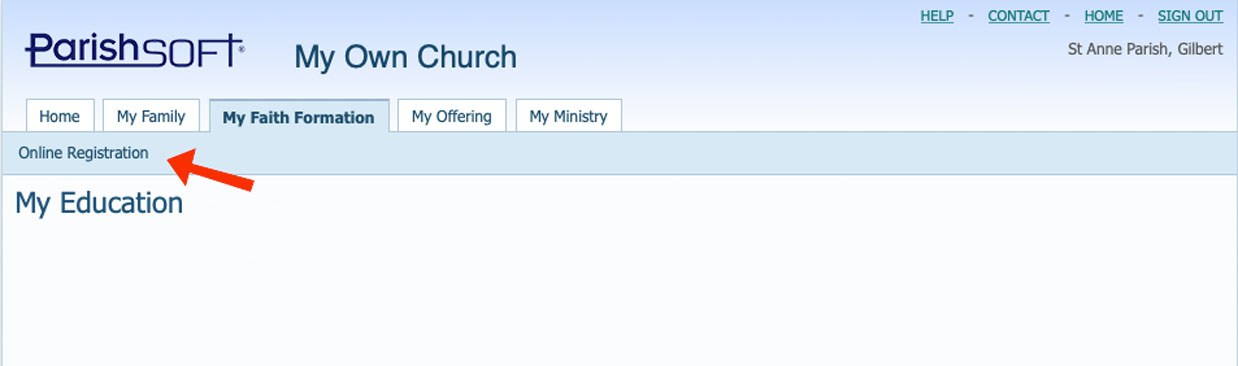
In the blue bar above "My Education" click the "Online Registration" link in the top-left area of the screen, underneath the tabs.
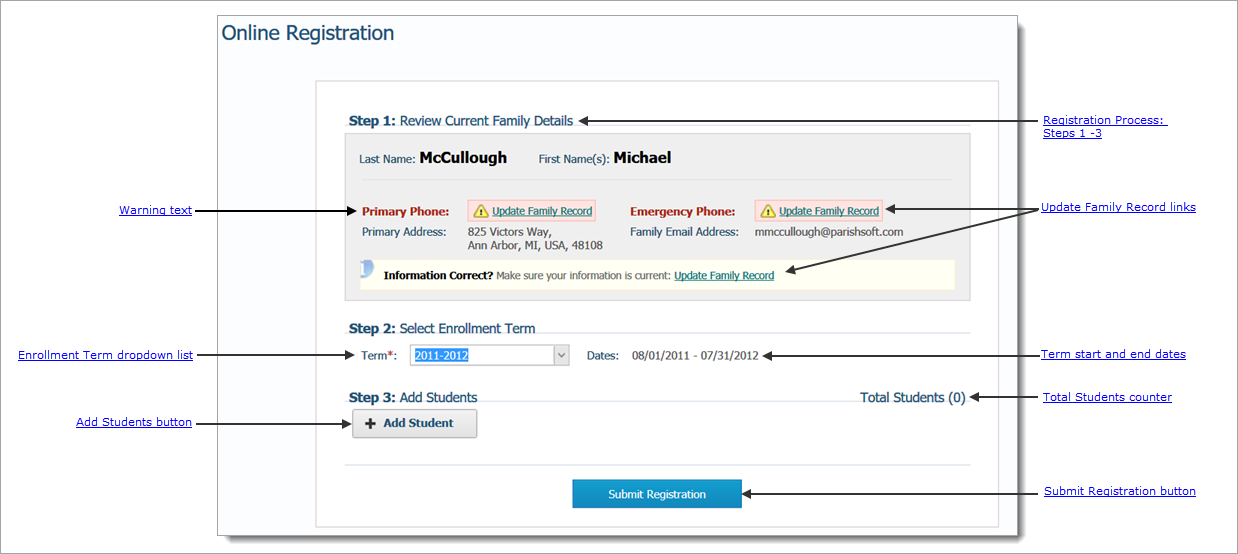
Key elements of the Online Registration page are identified in the callout areas of the illustration below. A more detailed description of this callout image is located here.
Registration Process
The online registration process consists of a few easy steps.
Review Current Family Details
This section shows the current information for your family.
• Red warning text: Red text alerts you that information is missing from your family record. The information must be supplied before you can submit your online registration.
• Update Family Record: Click the link to view and, if necessary, update your family record.
Select Enrollment Term
Term *: Select the 2019-2020 academic year.
Add Students
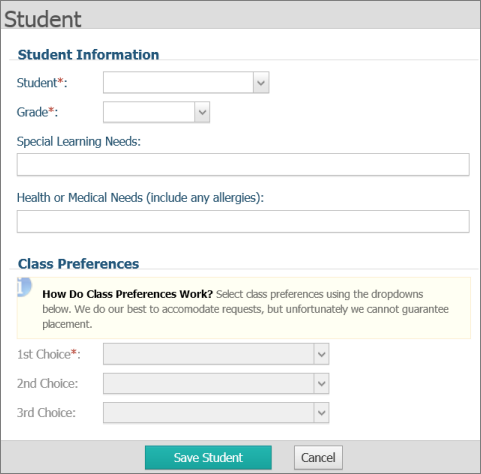
For each student you are registering, click the button. A student form will display.
An asterisk (*) indicates required information.
Supply information about the student in the Student Information section:
- Student: select the student's name from the dropdown list. - Grade: select the grade the student will be attending in the academic year 2019-2020. - Special Needs: if the student has any special needs, for example, individual education program (IEP), or other educational needs, type the information in this field. - Health or Medical Needs: if the student has special health needs (for example, has asthma or food allergies), type the information in this field.
Indicate your class preference in the Class Preferences section by selecting classes from the dropdown menu. If you are registering for CGS please indicate a first and second choice.
We will do our best to accommodate your preference requests.
Submit Registration
Click the Submit Registration Button to submit the student's registration. The system will send you a confirmation e-mail acknowledging your request. The e-mail will also include a list of your selected class preferences.
Are you ready to begin?
Click the button below to log in on My Own Church and register for classes.